

How to Reduce Data Usage While Traveling: 10 Tips
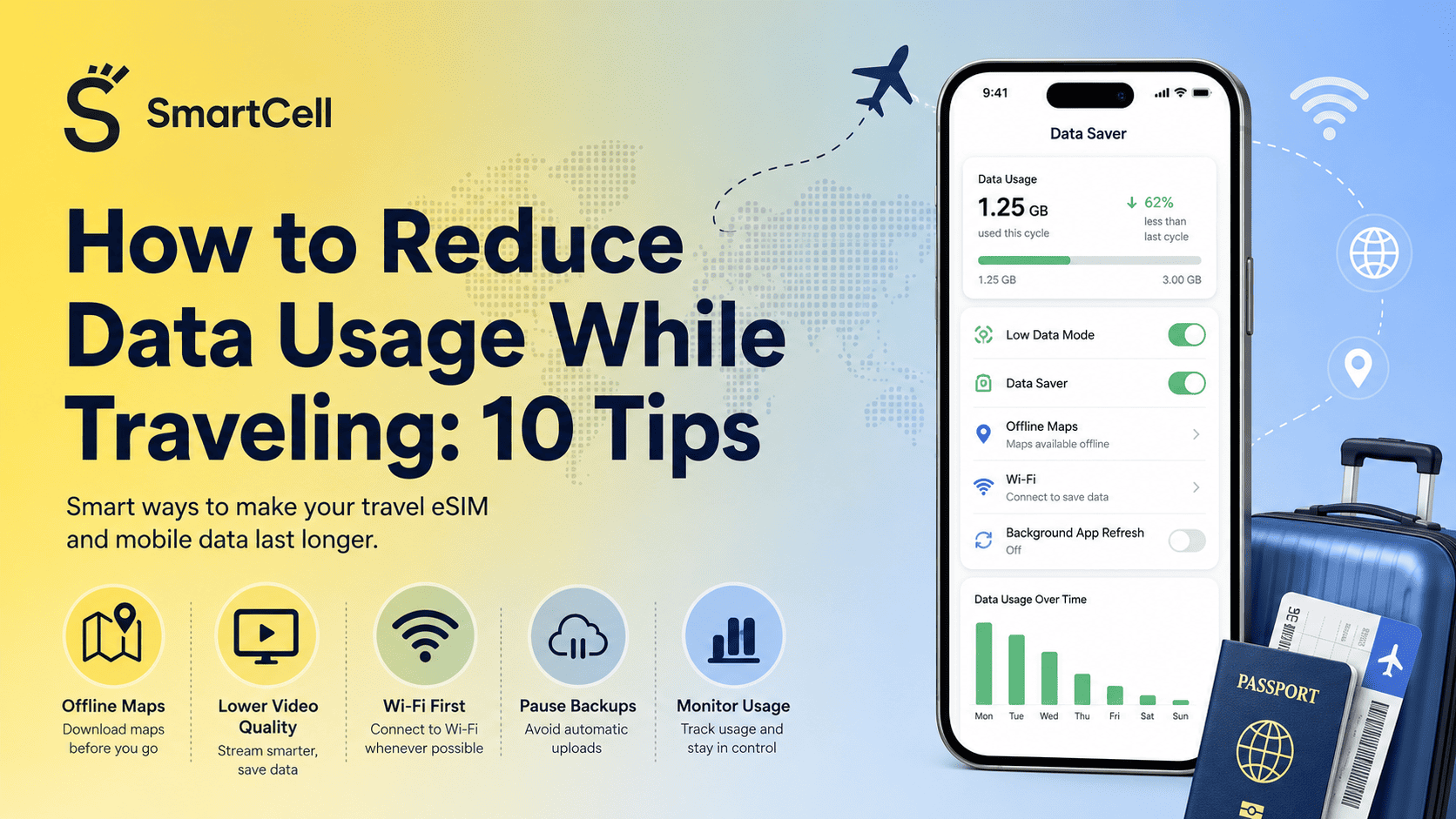
You can reduce mobile data usage while traveling by preparing offline content before departure, activating your phone’s data-saving mode, restricting background activity, pausing cloud backups and lowering the quality of video and audio streams. The most effective strategy is not to stop using your phone completely, but to reserve cellular data for essential activities such as navigation, bookings, transport updates and communication.
Both major mobile operating systems provide built-in controls for this purpose. Apple’s Low Data Mode restricts background network use, pauses automatic updates and backups, and reduces streaming quality. Android’s Data Saver similarly limits most applications to background data over Wi-Fi.
These controls are particularly useful with a limited travel eSIM plan. However, no single setting can prevent every unnecessary megabyte. Social video, cloud photo uploads, automatic downloads, unstable Wi-Fi and incorrectly configured Dual SIM settings can still consume data unexpectedly.
What Does Reducing Travel Data Usage Mean?
Reducing travel data usage means limiting the amount of information your phone downloads and uploads through a cellular network without losing access to essential online services.
Every internet-based action transfers data. Examples include:
Loading a digital map
Refreshing an email inbox
Downloading a photograph
Streaming music
Watching a Reel or TikTok
Making a WhatsApp video call
Uploading travel photographs
Synchronizing files with cloud storage
Updating an application
Sharing a mobile hotspot with another device
Some actions are lightweight. Text messages sent through an internet-based messaging application generally require little data. Video, cloud backups and software downloads are much heavier because they transfer larger files continuously.
Background data is particularly important. A phone may download email, refresh social feeds, synchronize files or back up photographs while the user is not actively looking at the application. Apple and Google therefore use system-level data-saving modes to restrict background activity rather than focusing only on what appears on the screen.
Reducing usage is popular among travelers because international connectivity is often sold as a fixed allowance, such as 1GB, 5GB or 10GB for a specified validity period. Careful management makes that allowance last longer and preserves data for situations in which Wi-Fi is unavailable.
Why Reducing Mobile Data Abroad Is Beneficial
It Preserves Data for Essential Travel Services
Navigation, boarding passes, accommodation details, transport schedules and emergency communication can be more important than entertainment. Restricting non-essential background activity reduces the risk of reaching a destination with insufficient data for these functions.
It Makes a Smaller Data Plan More Practical
A traveler who downloads maps and entertainment in advance may be able to use a smaller allowance than someone who streams everything through the cellular network. Selecting from suitable international eSIM data plans should therefore be based on both trip duration and expected app behaviour.
It Reduces the Risk of Unexpected Home-Carrier Charges
Using a travel eSIM does not automatically prevent the primary SIM from using roaming data. The correct mobile-data line must be selected, and data roaming should generally be disabled for the home SIM. Apple specifically advises turning off Data Roaming when traveling to avoid roaming charges through a home carrier.
It Can Improve Battery Life
Mobile networking, background synchronization, high-quality streaming and repeated uploads also require processing and radio activity. Android Battery Saver limits or disables certain background activities and network connections, while Apple’s Low Power Mode reduces background refresh and automatic downloads. These features are designed primarily for battery management but can indirectly reduce unnecessary network activity.
It Gives the Traveler Better Control
Monitoring usage by application makes it easier to identify whether the problem is navigation, social media, video calls, cloud backup or hotspot sharing. Android can provide data warnings and automatically disable mobile data at a user-defined limit on supported Pixel devices.
1. Download Maps, Tickets and Entertainment Before Departure
Preparing offline content is one of the most reliable ways to reduce mobile data usage because a file downloaded over Wi-Fi does not need to be transferred repeatedly through the travel plan.
Useful items to prepare include:
Google Maps areas
Airline and train tickets
Hotel confirmations
Destination guides
Translation language packs
Music playlists
Podcasts
Films and television episodes
E-books
Important documents
Copies of travel insurance information
Google Maps allows selected geographical areas to be stored on a phone and used when the connection is slow or unavailable. The full driving route must remain inside the downloaded area. Offline mode does not provide live traffic, alternative routes, public transport directions, cycling directions or walking directions.
This limitation matters. Offline maps are excellent for basic driving navigation but should not be treated as a complete replacement for a connection in a city where the traveler depends on live public transport updates.
Spotify also allows eligible users to download music, albums, playlists and podcasts for offline listening. By default, Spotify uses Wi-Fi for downloads unless cellular downloading is enabled manually.
Complete large downloads before departure or through a trusted accommodation network. Downloading an entire city map or several hours of video after activating a small eSIM plan defeats the purpose of offline preparation.
2. Enable Low Data Mode on iPhone or Data Saver on Android
System-level data-saving modes provide broader protection than adjusting one application at a time.
On iPhone
Open the settings for the active cellular plan and select:
Settings → Cellular/Mobile Data → Cellular Data Options → Data Mode → Low Data Mode
Menu names may vary by region and iOS version.
According to Apple, Low Data Mode can:
Restrict network use when applications are not actively being used
Turn off Background App Refresh
Reduce streaming quality
Turn off automatic downloads and backups
Pause services such as iCloud Photos
Disable App Store video autoplay and automatic updates
Optimize FaceTime video bitrate
On Android
On a Pixel device, open:
Settings → Network & Internet → Data Saver
When Data Saver is enabled, most applications and services receive background data only through Wi-Fi. Users can grant unrestricted access to selected essential applications. Some menu names and functions differ between manufacturers and Android versions.
Do not grant unrestricted access to every application. Doing so removes most of the benefit of the feature. Reserve exceptions for services that genuinely require immediate updates, such as a work communication application or transport-alert service.
3. Restrict Background Data for Non-Essential Applications
Background data allows an application to update content even when it is not visible on the screen.
Common background consumers include:
Social media
Cloud-storage applications
News applications
Podcast applications
Email accounts
Weather widgets
Shared photo libraries
Shopping applications
File synchronization services
Automatic app stores
On iPhone, cellular access can be disabled individually under the Cellular or Mobile Data settings. An application with cellular access disabled will wait for Wi-Fi. Apple confirms that users can turn cellular access on or off for individual apps and services.
On Android, users can open an application’s mobile-data settings and restrict background data where the device manufacturer provides that control.
Be selective rather than disabling everything. A messaging application used for hotel communication may need cellular access, while an entertainment or shopping application probably does not.
Before changing mobile-line controls, review the relevant phone settings to check before activating an eSIM. The eSIM should remain selected as the mobile data line while the primary SIM’s roaming data is restricted.
4. Pause Automatic Photo and Video Backups
Cloud photo backup can become one of the largest hidden data consumers during a trip.
Travelers often take more photos and videos than they do at home. A short high-resolution video may be much larger than a standard photograph, and automatic backup can begin shortly after the recording is created.
Check services such as:
iCloud Photos
Google Photos
OneDrive
Dropbox
Google Drive
Manufacturer gallery backup services
Social media draft synchronization
Apple states that Low Data Mode pauses iCloud Photos updates and automatic backups.
Google Photos also lets users choose whether photos and videos can be backed up using mobile data. If conserving an eSIM allowance is the priority, disable mobile-data backup and wait for a trusted Wi-Fi connection.
Do not permanently disable backup and forget about it. Photographs may be lost if the phone is damaged or stolen. A balanced approach is to back up the trip periodically through secure hotel or accommodation Wi-Fi.
5. Reduce Video Quality and Disable Autoplay
Video usually transfers much more data than text, audio or static images. Short-form feeds are especially demanding because each swipe loads another video and applications may preload upcoming content.
Before traveling:
Enable data-saving mode in Instagram and TikTok where available.
Turn off high-quality mobile uploads.
Reduce YouTube or streaming-video resolution.
Disable autoplay where the application provides the option.
Avoid livestreams over cellular data.
Upload Reels and travel videos through Wi-Fi.
Use audio-only mode for video podcasts.
TikTok offers a Lite application on supported Android devices in selected regions. TikTok describes it as a reduced-feature version designed to consume less cellular data and storage.
The largest savings generally come from changing behaviour as well as settings. A data-saving mode can reduce quality and preloading, but an hour of continuous video still uses substantially more data than a few messages or a short map search.
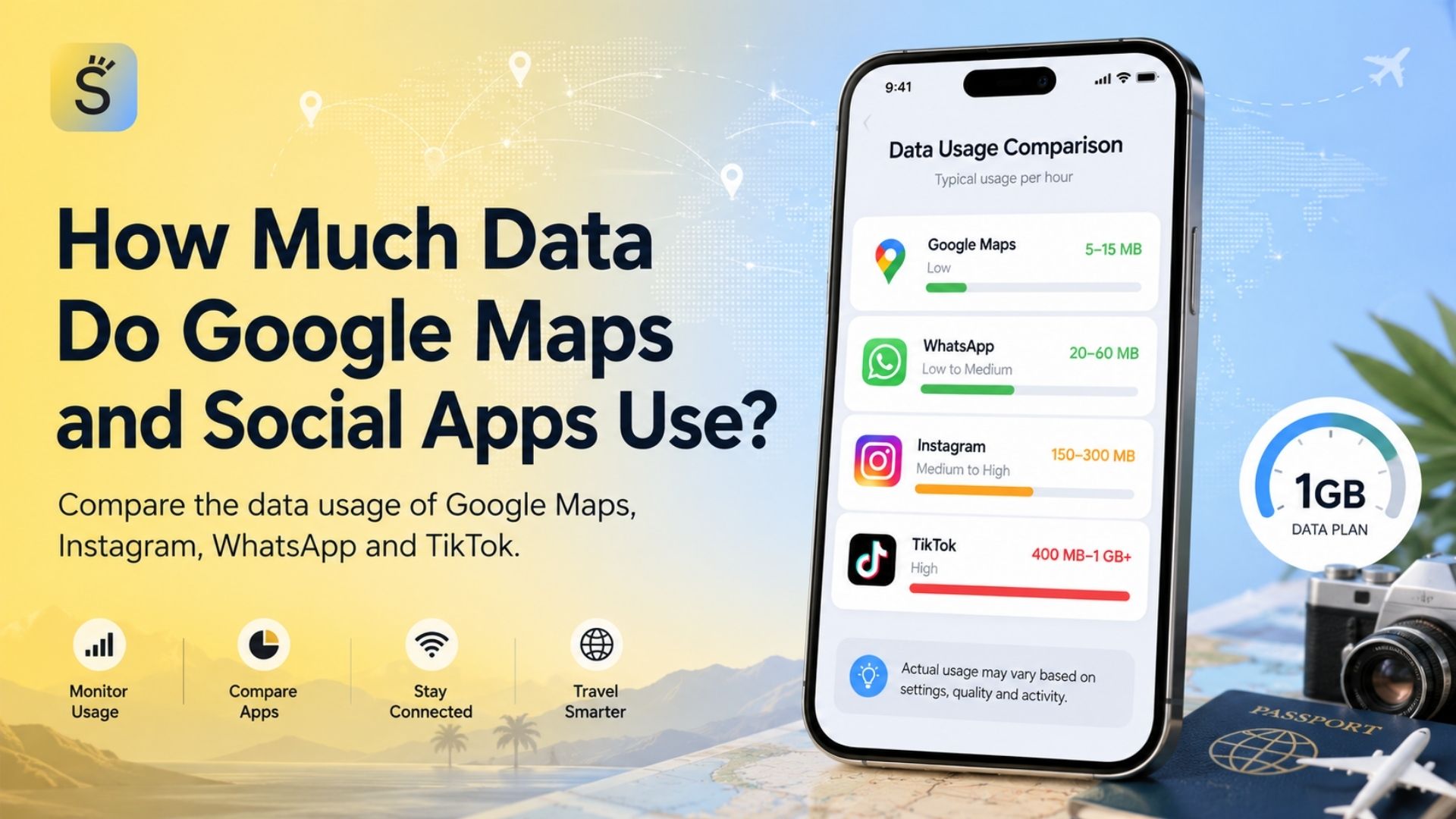
For a clearer estimate of how video and other activities affect a plan, see the app-by-app travel data usage guide.
6. Lower Music and Podcast Streaming Quality
Audio streaming usually uses less data than video, but it can still consume a meaningful portion of a limited plan during long flights, train journeys or road trips.
Spotify currently lists approximate mobile audio bitrates of:
Low: 24 kbit/s
Normal: 96 kbit/s
High: 160 kbit/s
Very High: 320 kbit/s for eligible Premium users
Higher-quality settings transfer more data, while low quality is intended to reduce consumption.
Spotify’s Data Saver reduces audio quality and displays fewer images. It also provides audio-only controls for video podcasts and lets users prevent downloads over cellular data.
The best travel configuration is to download regular playlists and podcasts over Wi-Fi. For content that must be streamed, select normal or low quality rather than very high or lossless quality.
7. Control Messaging Downloads and Internet Calls
Text-based messaging is generally data-efficient. The heavier parts of messaging applications are:
Automatically downloaded videos
Large group-chat files
HD photographs
Animated media
Voice calls
Video calls
Status and Story viewing
Automatic saving to the gallery
Cloud backups of chats and media
Set photographs, videos and documents to download manually or only over Wi-Fi. This prevents a busy group chat from downloading dozens of travel videos without the user actively opening them.
Prefer voice calls to video calls when cellular data is limited. Video calls require the continuous upload and download of visual information, whereas voice calls transfer audio only.
For family or work calls that must include video, use trusted Wi-Fi where possible. Keep in mind that a weak Wi-Fi connection may cause the phone to switch back to cellular data if an automatic assistance feature is enabled.
8. Use Wi-Fi Strategically, Not Automatically
Hotel, accommodation, airport and café Wi-Fi can preserve mobile data, but the network should be verified before sensitive activity.
The US Federal Trade Commission recommends keeping operating systems, browsers and security software updated when using public Wi-Fi. CISA advises avoiding sensitive transactions over an unsecured public network and using cellular data instead when checking bank information or making a purchase.
Use public Wi-Fi mainly for:
Downloading offline maps
Updating applications
Backing up photographs
Downloading entertainment
Uploading large travel videos
General browsing that does not involve sensitive information
Confirm the official network name with the hotel, airport lounge or venue. Do not automatically connect to similarly named networks.
Check Wi-Fi Assist on iPhone
Apple’s Wi-Fi Assist automatically switches to cellular data when the Wi-Fi connection is poor. It is enabled by default on supported devices and may result in additional cellular use.
To disable it:
Settings → Cellular/Mobile Data → Wi-Fi Assist
Apple notes that Wi-Fi Assist does not automatically switch to cellular data while data roaming is active and does not activate for certain large background or streaming downloads. Even so, checking the setting is sensible when using a limited travel eSIM.
9. Configure the Travel eSIM and Primary SIM Correctly
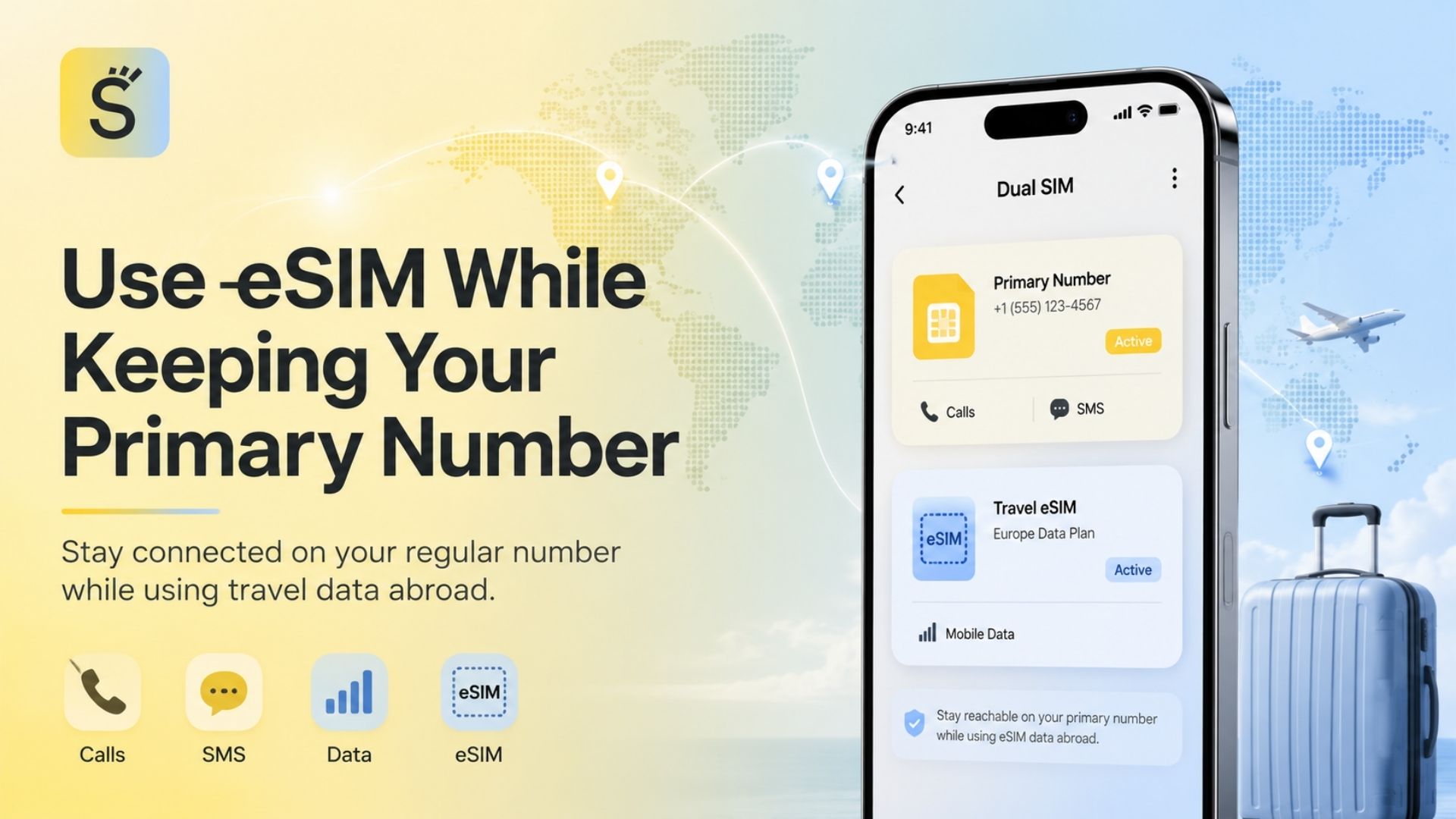
A travel eSIM saves data costs only when the phone sends mobile internet traffic through the correct line.
A typical Dual SIM configuration is:
Setting | Recommended line |
Mobile or cellular data | Travel eSIM |
Data roaming on travel eSIM | On, when required by the provider |
Data roaming on home SIM | Off |
Default calls | Primary SIM or preferred line |
Standard SMS | Primary SIM |
Automatic data switching | Off when strict control is required |
Many travel eSIMs operate through roaming agreements with destination networks, so data roaming may need to be enabled on the travel eSIM. This does not mean it should also be enabled on the primary home line.
Check both lines separately. A common mistake is to activate the travel eSIM but leave the home SIM selected for mobile data.
Travelers should also disable automatic cellular data switching if the phone might move internet activity to the home line. The detailed guide to avoiding unexpected roaming charges with an eSIM explains how the two lines should be separated.
10. Monitor Usage and Set Warnings or Limits
Do not wait until the plan is nearly empty before reviewing consumption.
A practical routine is to check usage:
At the end of the first travel day
After a long navigation session
After a video call
After hotspot use
After uploading photographs or video
Before moving to a new country
Halfway through the plan’s validity period
On iPhone
Open:
Settings → Cellular or Mobile Data
Review the data used by each application. Statistics can be reset at the beginning of the trip to create a clean measurement period.
On Android
The path varies, but it commonly appears under:
Settings → Network & Internet/Connections → SIMs/Data Usage
Supported Pixel phones allow users to create a data warning and a hard limit. The phone can display a notification at the warning threshold and automatically turn off mobile data when the limit is reached.
The operator or eSIM provider’s balance should be treated as the final measurement because the phone’s reporting period and the provider’s billing method may not match exactly.
Set the warning below the total allowance. For example, on a 5GB plan, an earlier warning leaves time to change settings before all data has been consumed.
Data-Saving Profiles for Different Travel Styles
Essential Connectivity
This profile prioritizes maps, messages, email, bookings and transport applications.
Recommended settings:
Offline maps downloaded
Low Data Mode or Data Saver enabled
Social video blocked or limited
Cloud backup set to Wi-Fi only
Automatic updates disabled
Small data warning configured
This is appropriate for travelers who use their phone mainly as a practical travel tool.
Balanced Travel and Social Sharing
This traveler navigates, messages, browses Instagram and posts occasional photos.
Recommended settings:
Standard-quality photo uploads
Reels and TikTok limited to Wi-Fi
Automatic media downloads disabled
Daily data use checked
Photo backup completed through accommodation Wi-Fi
A medium-sized plan normally provides more flexibility than a highly restrictive plan for this profile.
Content Creator
Content creators may record and upload high-resolution photographs, Reels and videos.
Data-saving measures remain useful, but a very small plan is usually inappropriate. Uploading should be scheduled through a stable trusted Wi-Fi network, and cellular data should be preserved for communication, navigation and urgent posts.
Remote Worker
Remote workers must account for:
Video meetings
Cloud file synchronization
Email attachments
Remote desktop tools
Laptop hotspot use
Team messaging
Software updates
Strict Data Saver settings may delay work notifications or cloud synchronization. Essential business applications should be allowed while entertainment and backup services remain restricted.
Where Aggressive Data Saving Is Not Recommended
Do not prioritize data savings over safety or critical communication.
Avoid disabling data for:
Emergency communication applications
Airline applications during active disruption
Navigation in unfamiliar or remote areas
Transport alerts needed for a connection
Medical or accessibility services
Work applications requiring immediate security approval
Offline maps also have technical limitations and may not provide live traffic or public transport information.
Practical Data-Saving Checklist
Before departure, confirm the following:
Check | What to verify |
Data allowance | Total GB, validity period and top-up availability |
Device compatibility | eSIM and Dual SIM support |
Offline preparation | Maps, tickets, music and key documents downloaded |
Mobile data line | Travel eSIM selected |
Home SIM roaming | Disabled |
System saver | Low Data Mode or Data Saver enabled |
Cloud services | Mobile backup disabled |
Streaming | Lower quality and autoplay restrictions configured |
Messaging | Automatic media downloads restricted |
App updates | Wi-Fi only |
Hotspot | Off unless required |
Usage alerts | Warning or limit configured |
Wi-Fi security | Official network name verified |
Emergency access | Essential applications allowed |
Comparing the Main Data-Saving Options
Option | Data-saving impact | Reliability | Setup and maintenance | Cost effect | Best use case |
Offline downloads | High for maps and entertainment | Very reliable once downloaded | Requires preparation and storage space | Can make a smaller plan practical | Planned trips and long journeys |
iPhone Low Data Mode | Moderate to high for background activity | Automatic after activation | Minimal maintenance | Reduces hidden consumption | Most iPhone travelers |
Android Data Saver | Moderate to high for background activity | Reliable, but manufacturer menus vary | Essential apps may need exceptions | Reduces hidden consumption | Most Android travelers |
Per-app restrictions | High when the main data-consuming apps are known | Precise and controllable | Requires individual configuration | Helps preserve a limited allowance | Travelers using only a few essential apps |
Trusted Wi-Fi | Potentially very high | Depends on network speed and availability | Requires security awareness | Preserves cellular allowance | Backups, downloads and large uploads |
Larger eSIM plan | Does not reduce consumption | Provides the most flexibility | Little behavioural restriction | Higher initial cost | Content creators, families and remote workers |
No option is universally better. Offline downloads provide the clearest reduction, while system-level modes offer the best balance between convenience and control. A larger plan is the better choice when reducing quality or delaying uploads would interfere with work.
Maintaining Low Data Usage Throughout the Trip
Data-saving settings should be treated as an ongoing travel routine rather than a one-time setup.
At the beginning of the trip:
Reset the phone’s cellular statistics.
Confirm the travel eSIM is supplying mobile data.
Check that cloud backup remains paused.
Verify downloaded maps cover the correct areas.
Set a warning below the plan limit.
Every few days:
Review data use by application.
Download new maps and tickets over trusted Wi-Fi.
Back up important photographs securely.
Remove unnecessary offline files when storage becomes limited.
Check the remaining eSIM balance.
Confirm that no app update has changed a data-saving preference.
After returning home:
Restore normal backup settings.
Re-enable automatic updates if desired.
Change the mobile-data line back to the regular SIM.
Turn off or remove the travel eSIM according to the provider’s instructions.
Reset the data warning for the normal billing cycle.
Common Mistakes That Waste Travel Data
Downloading Offline Content After Activating the Plan
Downloading maps, playlists and films through the eSIM consumes the same cellular data that offline preparation was intended to save.
Assuming Closing an App Stops All Data Use
Applications can continue refreshing or synchronizing in the background unless system or per-app restrictions are enabled.
Leaving Cloud Backup Active
Travel photos and especially videos can create substantial background uploads.
Watching Social Video Without Data Saver
Autoplay and preloading can download videos that the traveler never watches completely.
Using a Laptop Hotspot Without Checking Its Settings
A laptop may download operating-system updates, cloud files and email attachments through the phone’s connection.
Trusting Every Public Wi-Fi Network
An unsecured or impersonated network may create security risks. Sensitive financial activity is often safer over a trusted cellular connection.
Disabling Every Background Service
Overly aggressive restrictions can delay flight notifications, transport updates and urgent messages.
Selecting the Home SIM for Mobile Data
This can create carrier roaming charges even though a travel eSIM has been installed.
Confusing Storage Use With Data Use
Deleting downloaded files creates storage space but does not restore data already consumed from the plan.
Checking Usage Only at the End of the Trip
Usage monitoring is most valuable while there is still time to change behaviour.
Is Reducing Travel Data Usage Worth It?
Yes, particularly when the traveler has a fixed data allowance, will visit several destinations or relies heavily on social media and cloud services.
The highest-value measures require little sacrifice:
Downloading maps before departure
Pausing cloud backup
Using Low Data Mode or Data Saver
Restricting automatic updates
Lowering video quality
Monitoring daily usage
These settings protect the plan without preventing access to essential communication.
However, data-saving should not become inconvenient or unsafe. A remote worker, content creator or family sharing a hotspot may benefit more from a larger plan than from constantly managing every megabyte.
The most efficient approach combines an appropriately sized data package with sensible controls. Buying too little data can create unnecessary restrictions, while buying far more than needed may waste money. Actual app usage, trip length, Wi-Fi availability and top-up options should determine the decision.
Frequently Asked Questions
What uses the most mobile data while traveling?
Video streaming, short-form social video, video calls, cloud photo backup, software updates and hotspot sharing are commonly the heaviest activities.
Does GPS use mobile data?
GPS positioning itself can work without cellular data, but map downloads, searches, traffic updates and route changes may require an internet connection.
Can Google Maps work without data?
Yes. Google Maps can provide offline driving navigation inside a downloaded area. Live traffic, alternate routes, walking, cycling and public transport directions are unavailable offline.
Does Low Data Mode turn off mobile data?
No. It reduces background activity, automatic downloads, backups and streaming quality while keeping the cellular connection available.
What does Android Data Saver do?
It restricts most applications and services to background data over Wi-Fi. Selected applications can be allowed unrestricted mobile data access.
Should I turn off data roaming when using a travel eSIM?
Turn off data roaming on the home SIM. The travel eSIM may require data roaming to be enabled because many travel plans connect through partner networks.
Should I turn off iCloud or Google Photos backup abroad?
Set backup to Wi-Fi only when using a limited plan. Resume backup through a trusted connection so important travel photographs remain protected.
Does watching downloaded content use mobile data?
Properly downloaded offline content should not require mobile data for playback, although the application may briefly connect for licensing, synchronization or account checks.
Can public Wi-Fi help save mobile data?
Yes, but verify the network and avoid sensitive activity on unsecured connections. CISA recommends using cellular data instead of unsecured public Wi-Fi for activities such as checking bank information or making purchases.
Why is my phone using data when I am connected to Wi-Fi?
A weak Wi-Fi connection, background services or features such as Wi-Fi Assist may cause cellular data to be used. Apple’s Wi-Fi Assist can automatically switch to mobile data when Wi-Fi performance is poor.
Can I set a data limit on my phone?
Supported Android devices can provide warnings and automatic limits. iPhone displays app-level cellular usage, while the eSIM provider’s account or application should be used to confirm the remaining balance.
Is 1GB enough for a short trip?
It can be sufficient for maps, messages, email and light browsing when video, cloud backup and large downloads are restricted. Frequent Reels, TikTok, video calls or hotspot use can consume it much faster.
Should I disable 5G to save data?
5G does not automatically make the same file larger, but faster connections may enable higher-quality video, enhanced services and larger background activity. On supported iPhones, Apple notes that certain 5G data modes can allow higher-quality content, cellular software updates and automatic iCloud backups.
Final Takeaway
The most effective travel data-saving strategy is to combine preparation, device settings and active monitoring.
Download maps and entertainment before leaving, enable Low Data Mode or Data Saver, restrict background applications, pause cloud backups, lower streaming quality and verify that the travel eSIM is selected for mobile data. Use trusted Wi-Fi for large transfers and monitor the remaining allowance throughout the trip.
These steps preserve data for the services that matter most: navigation, bookings, transport updates, communication and access to important travel information.